

Updated:
Installing Counter-Strike 1.6 takes about a minute, and nothing in the process is complicated — but if this is your first non-Steam install, it helps to know what each step looks like and which prompts are normal. This guide walks through the whole thing: downloading the setup, running it, first launch, adding bots, and joining your first server. A troubleshooting section at the end covers the few problems people actually run into.
- Setup file size: about 175 MB
- Installed size: roughly 700 MB of disk space
- No CD-key, no registration, no bundled software
- Works on Windows XP through Windows 11
# Step 1
Download the installer
Use the download button at the top of this page. On a stable connection the direct link is the fastest option — the file arrives in a couple of minutes. If your internet is slow or drops out, use the torrent download instead: it resumes automatically after interruptions and verifies every chunk, so the installer can never arrive corrupted. Both deliver the identical build.
# Step 2
Run Counter-Strike-install.exe
Double-click Counter-Strike-install.exe in your Downloads folder. Windows SmartScreen or your antivirus may show a warning — this is a routine false positive that affects most non-Steam game installers, because they unpack a complete game client. As long as you downloaded the file from this site, choose More info → Run anyway (or restore it from quarantine and add an exception). The installer contains the game and nothing else.
# Step 3
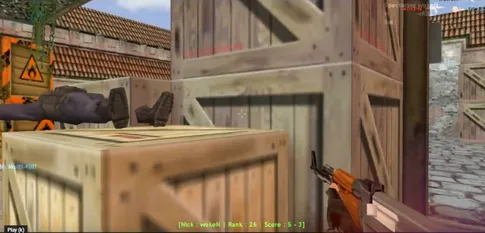
Choose the install folder
The setup suggests a default location, and for most people the default is the right choice. If you prefer a custom folder, pick any path you like — a simple one such as C:\Games\Counter-Strike 1.6 is ideal. Avoid deeply nested folders with special characters in the name. Click Install, wait roughly a minute, and a desktop shortcut appears when it finishes.
# Step 4
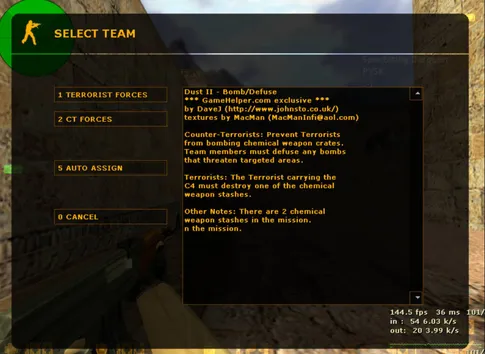
First launch: name and resolution
Double-click the desktop icon and the game opens straight into the main menu. Two settings are worth changing before anything else. Under Options → Multiplayer, set your player name — that is what everyone sees on the scoreboard. Under Options → Video, set the resolution to your monitor's native one. The included high-FPS config already handles the rest: on any modern PC the game holds a steady 100 FPS without further tuning.
# Step 5
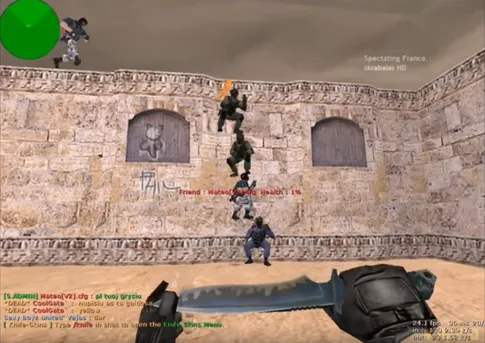
Practice against bots
Choose New Game, pick a map — de_dust2 is the classic starting point — and once you spawn, press H to open the bot menu. From there you add opponents and teammates, adjust their difficulty, and fill both teams. Bots are the best way to learn maps and weapon recoil before you face real players, and everything works offline.
# Step 6
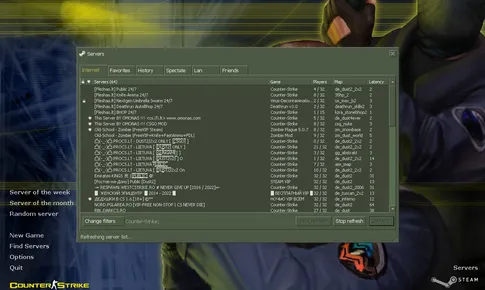
Join a server
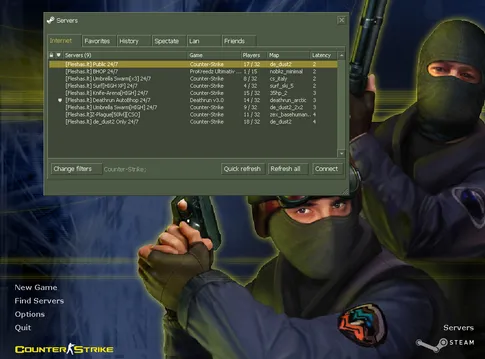
Back in the main menu, open Find Servers. The build ships with a working master server list, so the browser fills with active servers right away. Sort by ping, pick a server with a low number, double-click it, choose a team, and you are playing online. Dual 47/48 protocol support means every server type is joinable. The server browser guide explains the filters — game mode, map, and player count — in more detail.
Troubleshooting
The install itself almost never fails, but three first-launch issues come up often enough to cover here:
- Black screen or wrong resolution on launch. If the game opens to a black screen or a stretched picture, let it reach the menu, open Options → Video, and select your monitor's native resolution. If the menu is not reachable, restart the game once — the engine falls back to a safe mode automatically.
- "Missing gfx" or half-life.wad errors. This means the installer did not finish writing files — usually because an antivirus interrupted it mid-install. Add an exception for the setup file, then reinstall. A torrent download also rules out a corrupted setup, since every chunk is verified.
- Windows Firewall prompt on first online game. The first time you open Find Servers or join a server, Windows asks whether to allow the game through the firewall. Click Allow — the game needs network access to reach the master server list and game servers. Blocking it leaves the server browser empty.
If your PC is very old and you are unsure it can run the game at all, check the system requirements — almost any computer from the last fifteen years clears them easily.
What each step looks like
Frequently asked questions
How long does the CS 1.6 installation take?
On any modern PC the whole process takes about a minute. The setup file is roughly 175 MB, and unpacking the game to disk usually finishes in under sixty seconds on an SSD. Even on an old hard drive you will rarely wait more than two or three minutes.
How do I uninstall CS 1.6 later?
Uninstall it like any other Windows program: open Settings, go to Apps, find Counter-Strike 1.6 in the list, and click Uninstall. You can also delete the installation folder manually — the game keeps everything inside its own directory and does not spread files around your system.
Can this build run alongside Steam Counter-Strike?
Yes. The non-Steam client installs into its own folder and does not touch your Steam library, so you can keep Steam CS, CS:GO, or CS2 installed on the same PC. The two versions have separate configs and never interfere with each other.
Do I need a CD-key or serial number?
No. This build never asks for a CD-key, serial number, or registration. You download the installer, run it, and play — there is no activation step of any kind.
My antivirus flagged the installer. Is that normal?
False positives are common for non-Steam game installers because they unpack a full game client. Make sure you downloaded the setup file from this site, and if your antivirus quarantines it, restore the file and add an exception. The installer contains only the game — no ads, toolbars, or bundled software.
That is the entire process: download, run the setup, set your name and resolution, and play. If you have not grabbed the installer yet, the CS 1.6 download page has the full details on what is inside the build.